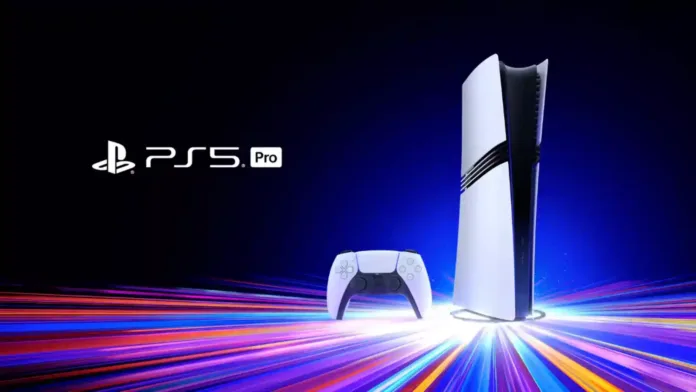
A new PS5 system software update 26.02-13.00.00 is now available to download. According to the official patch notes, the latest PS5 firmware update 26.02-13.00.00 improves PSSR visuals on PS5 Pro, adds Unicode 17.0 emoji support, introduces new Welcome Hub customization features, and enhances overall system performance and usability.
What is new in PS5 system update 26.02-13.00.00? – March 17, 2026

PS5 Update 26.02-13.00.00-00.00.00.0.0
Visual Enhancements
-
Enhanced PSSR (PlayStation Spectral Super Resolution) for sharper visuals in supported games.
-
Option added to enable enhanced PSSR manually via Settings > Screen and Video > Video Output.
-
Feature available exclusively on PS5 Pro.
Messaging
Welcome Hub Updates
-
Introduced Showcase Mode to display full background when console is idle.
-
Added Slideshow Mode to rotate images from a selected album.
-
Enabled background customization directly from Media Gallery.
-
Added a new background option.
-
Added settings to control idle time for Showcase Mode.
System Improvements
How to Manually Update PS5 System Software 26.02-13.00.00
Start by ensuring that your PlayStation 5 is connected to the internet.
- Go to Settings: On the PS5 home screen, navigate to the Settings menu. It’s represented by a gear icon located at the top-right corner of the screen.
- Select System: Once in Settings, scroll down and select System.
- System Software Update and Settings: In the System menu, choose System Software followed by System Software Update and Settings.
- Update Using Internet: Select Update Using Internet. The system will automatically check for any available updates.
- Proceed with Update: If an update is available, you will be prompted to confirm. Select Update Now.
- Agree to Terms: Read and agree to the terms and conditions if prompted.
- Download and Install: The download will begin automatically. Depending on your internet connection and the size of the update, this process may take some time. Once the download is complete, select Install to proceed.
- Restart and Install: Your PS5 will restart during the installation process. Be sure not to power off the console or unplug any cables.
- Complete the Update: After the installation, your PS5 will restart again, and you’ll be running the latest system software version.
Update PS5 System Software via USB (Using PC)
If you cannot update your PS5 via the internet, follow these steps to update via USB:
- Prepare a USB Drive: Using a PC or Mac, format a USB drive as FAT32. Create a folder named PS5 on the drive, then inside that folder, create another folder named UPDATE.
- Download the Update File: Download the PS5 update file from the official PlayStation website. Save the file as PS5UPDATE.PUP in the UPDATE folder.
- Insert USB into PS5: Plug the USB drive into your PS5 console.
- Start PS5 in Safe Mode: Turn off the console, then press and hold the power button. Release it after the second beep to boot into Safe Mode.
- Select Update System Software: In Safe Mode, select option 3: Update System Software.
- Choose Update from USB: Select Update from USB Storage Device and press OK to begin the update.
Once completed, your PS5 will restart, and the system software will be updated.
Previously, the major update added Open and Closed Parties, UI enhancements on PS5, accessibility features, PS App and remote play enhancements.
Download PS5 System Software Update 26.02-13.00.00
Download PlayStation 5 version 26.02-13.00.00 from here or check your system updates.
PS5 update file 26.02-13.00.00 download (ps5update.pup file)
Reinstalling the system software on your PS5 console will delete all of the data on your PS5 console. This process is often referred to as a “factory” reset, or “hard” reset.
PS5 Reinstallation file 26.02-13.00.00-00.00.00.0.0 download (ps5update.pup file)